
It is very common to colorize old black and white photos. The main reason that most people want to edit old photos is that they are interested in changing them into a different type of photo. Many people love to take old photos and put them on their walls with beautiful art on the outside. It is very exciting to watch people enjoy their old photos and it looks wonderful. The problem that people face though is that they do not know how to colorize old black and white photos.
You need to learn about photo editing software first so that you can get the best results. There are a lot of free software packages out there that will help you learn how to colorize old photos. Once you learn how to do this, you will be able to turn your photos from boring to beautiful.
Showing posts with label image. Show all posts
Showing posts with label image. Show all posts
01 December, 2020
27 July, 2019
by
Updated on
27 July, 2019
3 comments
4 Best Screen To GIF Recording Free Software
Screen recorder that saves the output as GIF animation for Windows can help you to capture screen activity and use the result in illustration tutorials. You can also create a funny GIF for sharing using these free software. The best and free GIF creators software with the special feature are listed here.
Record screen activity to create GIF animations. If you are a blogger, animations get a huge response on social media. Irrespective of browser and platform, animations start immediately.
- Best when the length of recording is relatively small.
- Animation start playing as soon as the image load.
- Size is small compared to video.
- GIF animations easily grab social media attention and have more click ratio.
- Automatic playback of animation and unlimited looping.
13 January, 2019
by
Updated on
13 January, 2019
13 comments
How to Auto Change Gmail Background Every Time You Log In
Gmail themes allow you to change Gmail background wallpaper. You can either choose from featured photos suggested by Google or set your personal photos from Google Drive, Google Photos or any other online photo that has a public URL.
You can also upload any image from your local drive to set it as Gmail background.
Also, the solid color background allows you to choose solid colors for single-colored theme or dark theme.
You can also upload any image from your local drive to set it as Gmail background.
Also, the solid color background allows you to choose solid colors for single-colored theme or dark theme.
18 October, 2013
by
Updated on
18 October, 2013
Leave a Comment
Mute Camera Sound On Android Mobile
You must have come across a situation when you want to take pictures of your kids and when you try to take a snap, the camera shutter sound disturbed them and you missed the opportunity to capture more. This may also happen while taking pictures of pets when you don't want the camera shutter sound.
24 November, 2012
by
Updated on
24 November, 2012
Leave a Comment
Display Your Photo On Giant Screen Of Times Square
Have you ever thought of showing your own photo on the giant screen in Times Square of New York city? But Google do, as always, Google thinks everything that no one else can. Google has given you an opportunity to display your won photo on the giant screen at Times square of New York city.
Anyone above 13 years + age can upload any type of photo. There is no any restriction about the type and theme of photo, off-course you cannot upload anything that is not good for public appearance.
Anyone above 13 years + age can upload any type of photo. There is no any restriction about the type and theme of photo, off-course you cannot upload anything that is not good for public appearance.
15 March, 2012
by
Updated on
15 March, 2012
Leave a Comment
Get Detail EXIF Information Of Images
Every image you shoot stores information about everything like the resolution, date, time, camera model used, software used to capture the image, GPS location, flash used or not, exposure time and much more. The normal windows photo viewer shows only the basic information about images and do not help if you want in-detail analysis of any image.
Also when you want to share your images on the internet, you should check the EXIF data stored with that image making sure that you are not sharing any personal and sensitive information. You can easily delete all the EXIF data with one click.
02 March, 2012
by
Updated on
02 March, 2012
Leave a Comment
Rename Photos By Date They Were Shot For Easy Sorting
If you save all your photos in one place and have more than one camera, it's not that easy to manage the collection of your memories. Different cameras have different style of naming the photos and most of the time these names are of no any use and does not help in arranging your collection.
24 February, 2012
by
Updated on
24 February, 2012
Leave a Comment
Find Similar Images With Google Visual Image Search
Everyone uses Google Image Search but most of the time we search images by a text query. That's fine if you know the exact name of the thing you are searching for but suppose if you are planning a trip to say Delhi and you don't know the name of places to visit and if you find something interesting in the image search for the text query 'Delhi', how will you find more details and the more images about it?
Either you can waste your time in reading more about image and again type a text query in Google image search or you can use the Google visual image search which is an easier and better way to find images.
Even though if you know everything about the images you are searching for you can find more relative images by using the Google visual image search. It is really helpful and you should use it.
1. Enter text query about the topic you want in Google image search.
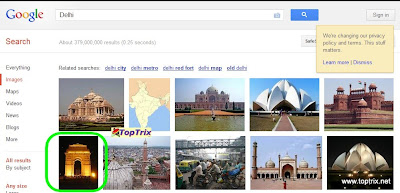
Google Visual Image Search
2. After you find an image you want to find out more about, select the image and drag that image into a Google search query input box. While you drag, a small popup box will guide you to drop the image.
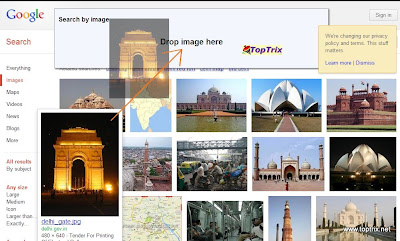
3. Get more and relative details about the image, place or anything you want with Google visual image search.
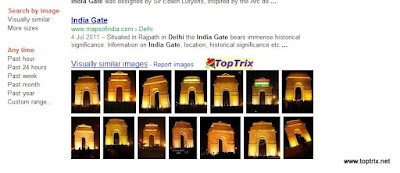
This way you can find anything you don't know about. If you have seen an animal and you don't know the name if you want to find more images of the same location and anything like that.
Upload Images You Have on Hard Disk and Search For Similar Images
You can also find similar images like those you have saved on your memory disk. Google image search allows you to upload the image from your desktop and it will find similar images on the internet.
Just click on a small camera icon in the search query box and upload the image and hit search.

Either you can waste your time in reading more about image and again type a text query in Google image search or you can use the Google visual image search which is an easier and better way to find images.
Even though if you know everything about the images you are searching for you can find more relative images by using the Google visual image search. It is really helpful and you should use it.
1. Enter text query about the topic you want in Google image search.

Google Visual Image Search
2. After you find an image you want to find out more about, select the image and drag that image into a Google search query input box. While you drag, a small popup box will guide you to drop the image.

3. Get more and relative details about the image, place or anything you want with Google visual image search.

This way you can find anything you don't know about. If you have seen an animal and you don't know the name if you want to find more images of the same location and anything like that.
Upload Images You Have on Hard Disk and Search For Similar Images
You can also find similar images like those you have saved on your memory disk. Google image search allows you to upload the image from your desktop and it will find similar images on the internet.
Just click on a small camera icon in the search query box and upload the image and hit search.

23 February, 2012
by
Updated on
23 February, 2012
Leave a Comment
Online Vector Graphics / SVG Editor
Scalable Vector Graphics a.k.a SVG format is a text-based graphics language that
Uses XML to describe images with vector shapes, text and other type of scalable graphics.
By using SVG you can easily create compact and high-quality graphics for
The Web and other resource-limited devices like mobile and tablets. SVG
Also supports scripting and animation making it ideal for interactive graphics. SVG is a royalty-free and open standard so anyone can use it for professional purpose.
15 January, 2012
by
Updated on
15 January, 2012
1 comment
Auto Capture Images From WebCam
Do you want to automate your webcam? You can capture images of a streaming web cam feed at your predefined intervals.
WebCamImageSave is a simple webcam capture tool which automatically capture and save still images from your webcam every few minutes or hours. You can customize the image quality settings and text label with the date and time of the capture.
Is has supports support for command-line with options that let you capture a single camera image without displaying the interface.
WebCamImageSave is a simple webcam capture tool which automatically capture and save still images from your webcam every few minutes or hours. You can customize the image quality settings and text label with the date and time of the capture.
Is has supports support for command-line with options that let you capture a single camera image without displaying the interface.
14 December, 2011
by
Updated on
14 December, 2011
Leave a Comment
Extract Images From Office Documents
You must have used images to upgrade the quality of your office document or your presentation. Sometime you might have saved images in word documents. but what if you want to extract images from any office document? Extracting images from documents involves manually saving each image, which is really a time-consuming task. Office Image Extraction Wizard is an application that lets you extract images from Microsoft Office documents in the batch process. The application lets you save the images either to the original folder, or it can create separate folders for images extracted from different documents. The wizard takes you through the whole image extraction process, and you need to follow the simple steps. The Input & Output window lets you select the document you want to extract images from and the output folder where the extract images should be extracted. Click Next after selecting the Document and Output Folder. It supports DOCX, PPTX, XLSX, ODT, ODP, ODS, EPUB and CBZ document formats.

Select Batch Mode at the bottom to extract images from multiple documents. Add Files and define Output Folder and choose if the application should create separate folders for each document from the right.

Click Finish to exit the wizard. The extracted images will be saved in the destination folder.

Download Office Image Extraction Wizard
by
Updated on
Leave a Comment
Search, Filter And Edit Image Tags with JPhoto Tagger
Windows inbuilt facility can display the tags associated with any image in explorer. But this does not come to your help when you want to EDIT these TAGS in bulk.
JPhotoTagger is a comprehensive photo tag editing application, that let you effortlessly manage and edit images tags.
The application has the ability to mange and find your images through keywords, descriptions and metadata. It speeds up tag edit tasks by using automatic keyboard text completion.
The main interface has Selection Views including Folders, Favorites, Keywords, Timeline, Searches, Photo Albums, Without Metadata and Miscellaneous at the left side.
 To start editing metadata, select Scan Folders from the File menu. Now, click Choose Folders to select the image folder. You can include sub-folders also in the scanning process with scan sub-folders option. Once added, click Scan Folders to start the process.
After the images are scanned, the application opens the main interface where all the scanned images are displayed. Now, select an image to view and filter EXIF, IPTC or XMP metatag information.
The Edit tab lets you modify the metadata information including Keywords, Location, Date Taken, Photographer Name, City, Country, Copyright, Credits, Rating, Transmission Reference etc.
Download JPhoto Tagger
JPhotoTagger is a comprehensive photo tag editing application, that let you effortlessly manage and edit images tags.
The application has the ability to mange and find your images through keywords, descriptions and metadata. It speeds up tag edit tasks by using automatic keyboard text completion.
The main interface has Selection Views including Folders, Favorites, Keywords, Timeline, Searches, Photo Albums, Without Metadata and Miscellaneous at the left side.
- The Thumbnail Window lies in the middle of the interface. You can zoom image thumbnails in and out, sort images by Filenames, File Extensions and Metadata, and rate images.
- The right side bar holds Metadata View editing section, which contains EXIF, IPTC, XMP, Edit and Keywords tabs.
After the images are scanned, the application opens the main interface where all the scanned images are displayed. Now, select an image to view and filter EXIF, IPTC or XMP metatag information.
The Edit tab lets you modify the metadata information including Keywords, Location, Date Taken, Photographer Name, City, Country, Copyright, Credits, Rating, Transmission Reference etc.
Download JPhoto Tagger


